Editing a PDF should be easy - Yes?
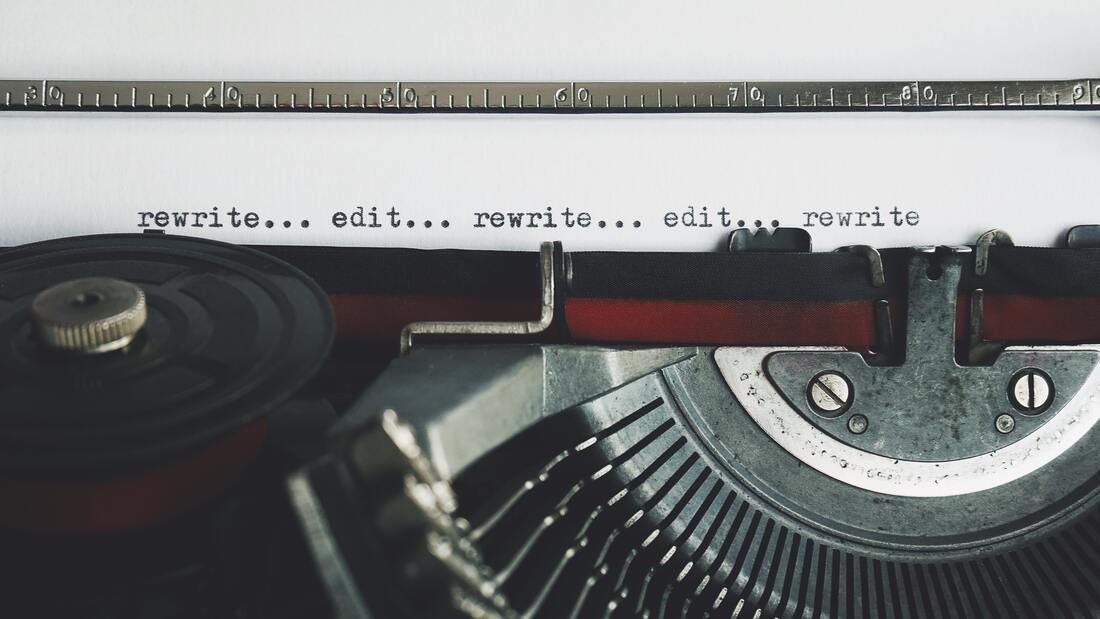
I learned something new this week! For context - I had a PDF where I needed to fix an error/typo but didn't have access to the editable word document version.
There are numerous PDF editors on various online platforms, but I was keen to use Adobe Acrobat (I'm a big fan of Adobe's suite and its various capabilities - if you're in education, there are discounts available on the creative cloud suite of apps). Hence, I opened Adobe Acrobat, went to 'Tools', and 'Edit PDF' on the menubar and opened the PDF file I wanted to work on.
I went to the typo, tried to delete and add in some next text.....but it didn't seem to work - it looked awful! What appeared initially as a quick fix, actually needed some more work/learning.
There are numerous PDF editors on various online platforms, but I was keen to use Adobe Acrobat (I'm a big fan of Adobe's suite and its various capabilities - if you're in education, there are discounts available on the creative cloud suite of apps). Hence, I opened Adobe Acrobat, went to 'Tools', and 'Edit PDF' on the menubar and opened the PDF file I wanted to work on.
I went to the typo, tried to delete and add in some next text.....but it didn't seem to work - it looked awful! What appeared initially as a quick fix, actually needed some more work/learning.
So what's the secret - well here it is - the font for the new text, or for any of the edit, has to be the same as in the source document.
Solution? Easy. Go to the font list and select what you need - but in many cases - the one you need is not listed as an option - it's listed at the bottom of the scroll of fonts, greyed out. Another roadblock encountered. However, there is a workaround....and below outlines how to get it finalised......
- For example, let's say the source PDF document was using the ‘calibri’ font, which isn’t by default on the Adobe suite. Hence, trying to delete spaces or enter new text can disrupt things, or not match - not solving your issue!
- Hence, go to https://fonts.adobe.com/ when signed in to Adobe creative cloud.
- Type in the font you need in to the search bar on the website (in this example, ‘calibri’)
- Open the font, by pressing ‘view the family’
- Activate the font with the small toggle button – this will install the font on your profile
- Relaunch the Adobe Acrobat software, and now with the font is installed which will match the text you want to edit. Select this font from the formatting menu.
- Editing is much easier and does exactly what you want now!
- Press Save on the file menu
- Job done! :-)
Just one thing to be mindful of is the licensing around certain fonts you may come across elsewhere, outside of Adobe – for example, you may require a Google font that is present in the source PDF you wish to edit, so may need to check licences etc. to ensure you can use it accordingly.
Photo by Suzy Hazelwood from Pexels